Table of Contents
What to Do When Someone's Account Is Disabled
SSW Tiger creates a dashboard after every recorded meeting. But if the Microsoft 365 account of the person who set up a meeting is disabled, Tiger stops creating dashboards for that meeting. This guide explains why, and how to fix it in a few minutes.
An account can be disabled for many reasons. For example, the person left the company, is on extended leave, or was blocked from signing in by your Microsoft 365 admin.
Who is this guide for?
This guide is for anyone who runs a recurring meeting that Tiger processes, such as a Sprint Review. For example, use this when you got a Tiger message pointing you here, or when dashboards stopped arriving after someone's account was disabled.
How to Tell If This Has Happened
- The meeting is still recorded and transcribed in Teams
- But no Tiger dashboard is created, and no Tiger message arrives after the meeting
- The person who first scheduled the meeting can no longer sign in, for example because they left
Nothing shows an error. Tiger just stops hearing about the meeting.
Who Is the Organiser?
The organiser is the person who first created the Teams meeting.
This is true for channel meetings too. Outlook may show the team as the organiser, but in Teams the meeting still belongs to the person who scheduled it.
How Tiger Lets You Know
Every day, Tiger checks the organiser of each meeting it has processed in the last 45 days. If the organiser's account is disabled or deleted, Tiger sends the meeting's participants one Teams message with a link to this page.
The Fix: Hand the Meeting Over
Don't delete the old meeting. End it instead. That way the history of past meetings stays in the channel.
- End the old series. In the channel's Posts, open the meeting's dropdown and choose Edit meeting details. Add an end date to the recurring series.
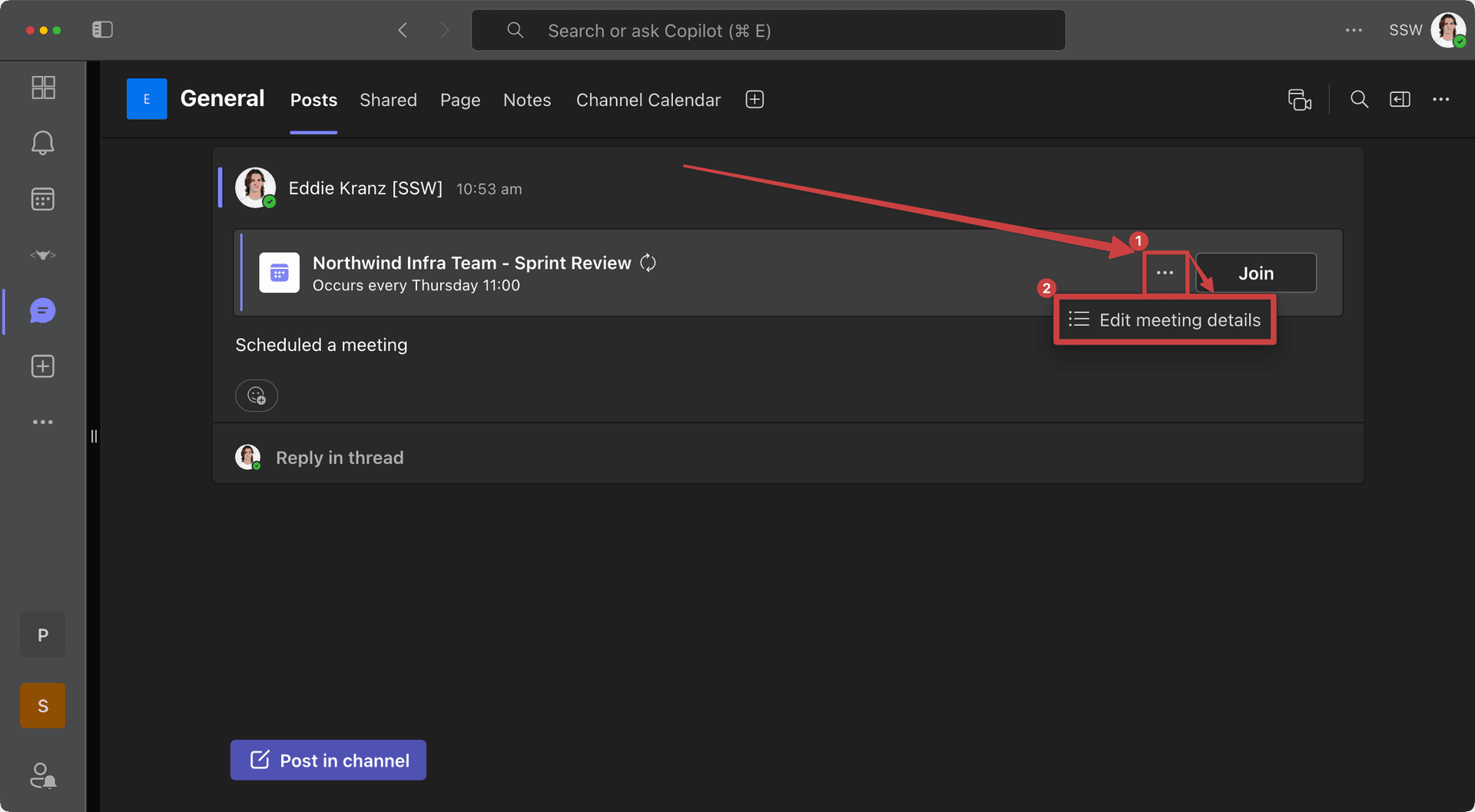 Figure: Posts | Click the meeting dropdown | Edit meeting details
- Schedule a new meeting. From an active account, go to the same channel's Posts. Click the dropdown next to the search icon in the top bar, then choose Schedule a meeting.
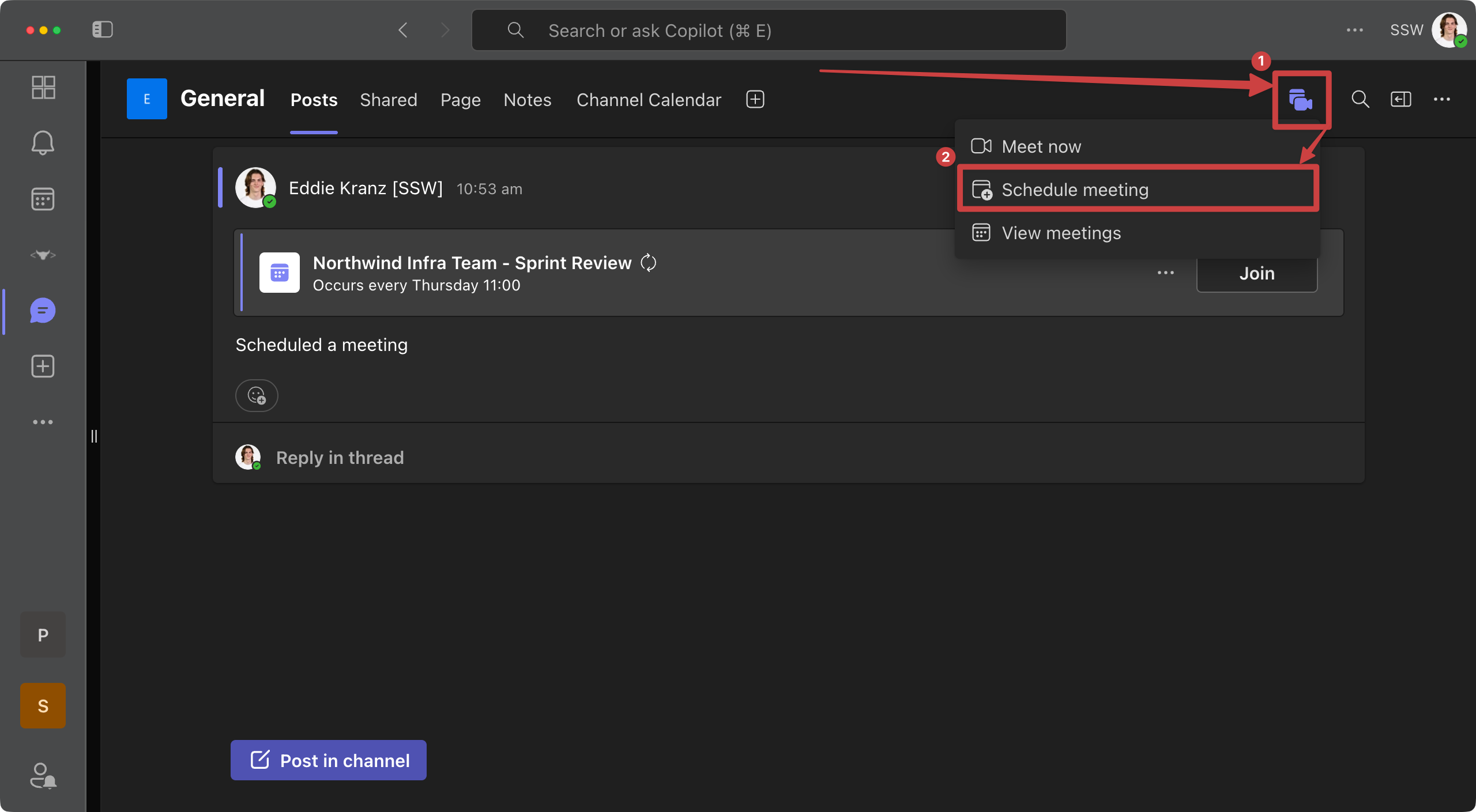 Figure: Posts | Click the dropdown next to the search icon | Schedule a meeting
- Copy the details over. Copy the title, attendees, time, recurrence and description from the original meeting, then click Send. Use the new meeting from now on.
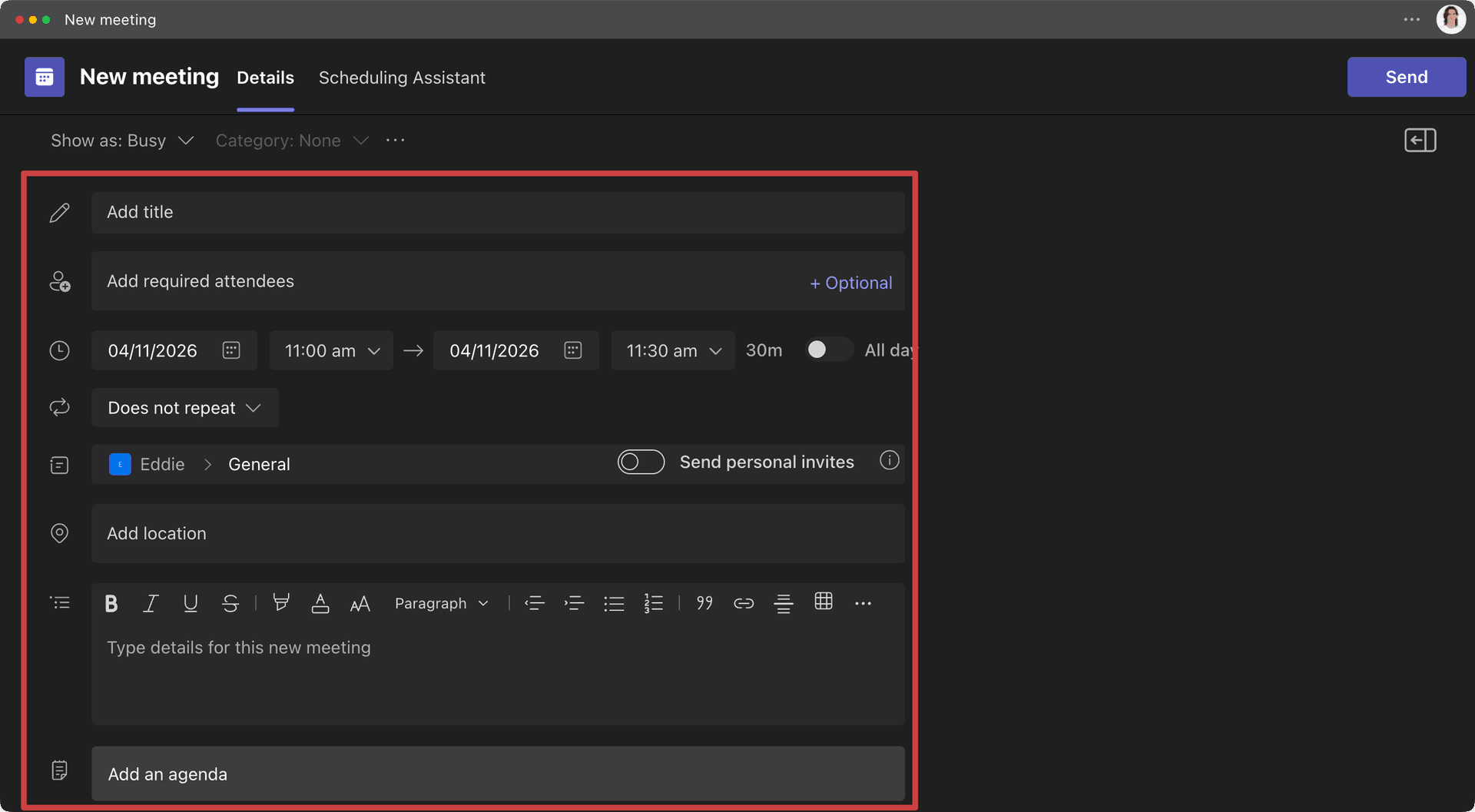 Figure: The fields to fill in on the new meeting
Whoever schedules the new meeting becomes its organiser. Tiger picks it up again from the next meeting.
Pro Tip: Ask someone who will own the meeting long term to schedule it, such as the team lead or Scrum Master.
Note: Re-sending the existing invite does not fix it. That keeps the same Teams meeting link, which still belongs to the old organiser. It has to be a newly scheduled meeting.
Recovering a Meeting That Was Already Missed
Tiger doesn't pick up a missed meeting by itself, but you can still get a dashboard for it.
Ask whoever manages Tiger for your organisation to reprocess it. Send them the meeting's Teams join link. They can usually reprocess it straight from the link, as long as the organiser's account has only been disabled and not yet deleted.
Or process it yourself:
- Someone who attended opens the meeting in Teams and goes to the Recap tab.
- Download the transcript as a
.vttfile. - Follow How to Process Your Own Transcripts Locally.
Why Does This Happen?
Tiger gets each transcript through Microsoft Graph. Microsoft only tells Tiger about a new transcript through the meeting's organiser, because the meeting belongs to them.
When the organiser's account is disabled, Microsoft stops telling Tiger about new transcripts for their meetings. Recording and transcription still work in Teams, but Tiger never hears about them.